
After thoroughly testing Apple's new iOS, the technology department is ready to go ahead with a school wide upgrade process. We want all San Domenico iPad users to implement this update by Wednesday, November 11, 2014.
Please follow these instructions:
1. This upgrade requires a large amount of space on your device. Make sure you have at least 5 GB of available storage on your iPad (preferably more). Here is a Business Insider article that explains why you need all this storage space on your iPad in order to perform this update. In the article you will also find a brief explanation of How to Free Up Space on your device in preparation for this process.
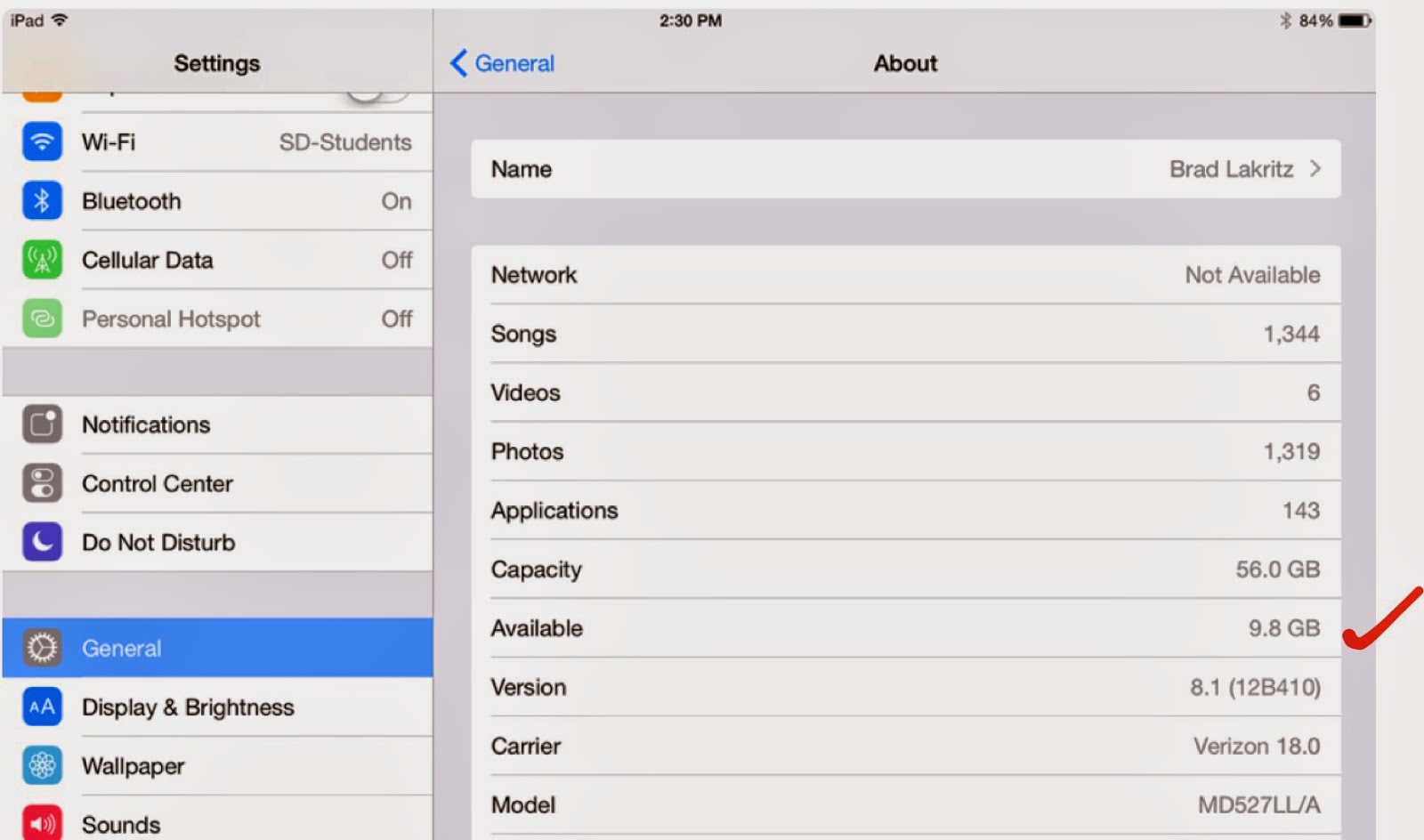 To check your available space open your Settings App. Tap General > About. Halfway down the screen is the Available storage. The amount available is listed on the right. If you do not have 5 GB of available storage you will need to clear space.
2. Make sure your iPad documents and data are backed up. Check the digital tools presentation for instructions on how to set up iCloud, Google Drive, and Box back ups for your data.
3. Make sure your iPad is fully charged and plugged in before you begin the update. For good measure we recommend you close all open Apps.
4. To begin the upgrade open your Settings App. Tap General > Software Update > Download and Install.
Note: This is a very large file download. Be patient in this process as it may take a long time before you see progress on your screen. Also, your iPad may have already downloaded the installer in which case you will see a button that only says Install. The entire process may take 45 minutes to an hour or more depending on your home network.
If you do not have enough space to perform the upgrade the Download and Install button will be grayed out and you will not be able to activate the process until you clear enough space on your iPad.
5. Once the iOS update is complete your iPad will restart. One of the first windows you will see provides you with an opportunity to Upgrade to iCloud Drive. Because of a compatibility problem with the Notability App at this time you should NOT choose this option.
Tap Not Now instead. Your iPad will ask you a second time "Are you sure you don't want to upgrade to iCloud Drive." Tap Continue.


6. Once you are successful upgrading your iPad to iOS 8 please open your Notability App and check your documents. Open a few of them to make sure your files are correct. After successfully opening your Notability files you may enable iCloud Drive. This new feature allows for sharing your documents across different devices.

7. To enable iCloud Drive open your Settings App. Tap iCloud. You may turn on iCloud Drive there and configure some of your Apps to iCloud Drive including Contacts, Calendars, Reminders, Safari, Notes, and Find My iPad.
 To enable iCloud Drive in Notability open the App and tap the Settings gear in the lower left corner of the main window. Tap iCloud and slide over the switch to turn on iCloud Drive. Once again please be patient. Depending on how many documents you are connecting through iCloud Drive, the process may take some time to sync.
 You also have the option of turning on Google Drive and Box back ups for Notability. You may use this feature to back up a variety of file types including .PDF and .RTF formats. We recommend you choose the Note option which allows you to open the file on different devices in the native Notability format.
Please note that the San Domenico technology department is happy to assist you with this process. Contact us through the tech support ticket system or stop by the office. We're happy to answer questions.
Brad Lakritz
Director of Technology


