Showing posts with label Google Drive. Show all posts

Monday, November 3, 2014

Upgrading to iOS 8 - A How To Lesson

After thoroughly testing Apple's new iOS, the technology department is ready to go ahead with a school wide upgrade process. We want all San Domenico iPad users to implement this update by Wednesday, November 11, 2014.

Please note: We would like users to implement this upgrade on their home network to prevent overloading our school network and so that you will have your device ready to go at school the next day. Also, there is one very significant issue related to your Notability App that we will address at the end of these instructions.

Please follow these instructions:

1.  This upgrade requires a large amount of space on your device. Make sure you have at least 5 GB of available storage on your iPad (preferably more). Here is a Business Insider article that explains why you need all this storage space on your iPad in order to perform this update. In the article you will also find a brief explanation of How to Free Up Space on your device in preparation for this process.
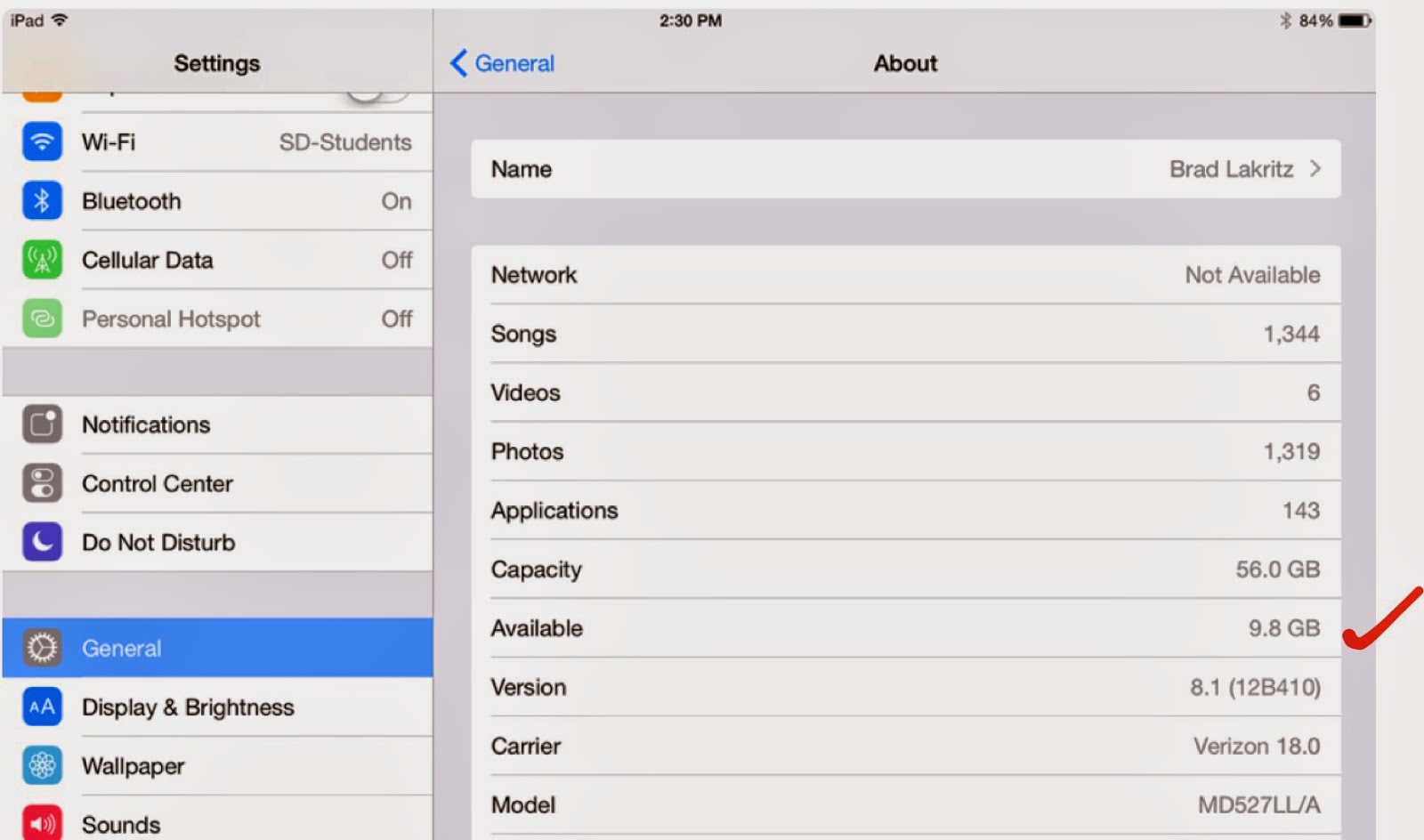
To check your available space open your Settings App. Tap General > About. Halfway down the screen is the Available storage. The amount available is listed on the right. If you do not have 5 GB of available storage you will need to clear space.
2.  Make sure your iPad documents and data are backed up. Check the digital tools presentation for instructions on how to set up iCloud, Google Drive, and Box back ups for your data.

3.  Make sure your iPad is fully charged and plugged in before you begin the update. For good measure we recommend you close all open Apps.

4.  To begin the upgrade open your Settings App. Tap General > Software Update > Download and Install. 

Note: This is a very large file download. Be patient in this process as it may take a long time before you see progress on your screen. Also, your iPad may have already downloaded the installer in which case you will see a button that only says Install. The entire process may take 45 minutes to an hour or more depending on your home network. 

If you do not have enough space to perform the upgrade the Download and Install button will be grayed out and you will not be able to activate the process until you clear enough space on your iPad.

5.  Once the iOS update is complete your iPad will restart. One of the first windows you will see provides you with an opportunity to Upgrade to iCloud Drive. Because of a compatibility problem with the Notability App at this time you should NOT choose this option. 

Tap Not Now instead. Your iPad will ask you a second time "Are you sure you don't want to upgrade to iCloud Drive." Tap Continue.


6.  Once you are successful upgrading your iPad to iOS 8 please open your Notability App and check your documents. Open a few of them to make sure your files are correct. After successfully opening your Notability files you may enable iCloud Drive. This new feature allows for sharing your documents across different devices.

7.  To enable iCloud Drive open your Settings App. Tap iCloud. You may turn on iCloud Drive there and configure some of your Apps to iCloud Drive including Contacts, Calendars, Reminders, Safari, Notes, and Find My iPad.

To enable iCloud Drive in Notability open the App and tap the Settings gear in the lower left corner of the main window. Tap iCloud and slide over the switch to turn on iCloud Drive. Once again please be patient. Depending on how many documents you are connecting through iCloud Drive, the process may take some time to sync.

You also have the option of turning on Google Drive and Box back ups for Notability. You may use this feature to back up a variety of file types including .PDF and .RTF formats. We recommend you choose the Note option which allows you to open the file on different devices in the native Notability format.

Please note that the San Domenico technology department is happy to assist you with this process. Contact us through the tech support ticket system or stop by the office. We're happy to answer questions.


Brad Lakritz
Director of Technology

Wednesday, January 29, 2014

iTeach, Therefore I Am

Several years ago I attended the California Association of Independent Schools (CAIS) Northern California Regional meeting. I attended a session on teaching animation in primary and middle schools with Barbara Cohen who, at the time, was Director of Technology with the Marin Country Day School.

Barbara Cohen
Barbara began her workshop with introductions and went out of her way to explain to all the other people in the room that she'd known me for a very long time. She added that I had taught her everything she knew about teaching video production with students.

I was a bit embarrassed about this introduction to the group. After all, the work I did with Barbara was at least 10 or 12 years earlier. We worked together on a project I created that taught students video production with VHS camcorders and linear video editing equipment. That process became obsolete long ago.

It occurs to me now that Barbara was really saying I had taught her an important lesson about the power of teaching with multimedia in the classroom. More specifically, I had taught her the value of engaging students in media production in the classroom.

Student video producers circa 1994
Classroom media production projects create an environment that promotes a deepening of student understanding of the content in their classes. Student media projects are also an integral part of student assessment in the modern classroom -- especially in 1:1 schools.

However, today students make their own videos on tablets and cell phones, and publish it for the world to see -- without the help (or even the request) of their teachers!

Which brings me to iTeach 2014.

At San Domenico School technology is a vital tool in the entire educational process. Teachers use it for their own personal productivity and for managing their educational resources and student grades and information. More importantly, because we are a 1:1 iPad school, we are engaing our students with technology every day. Having a powerful research and communication device stuffed in your backpack provides amazing access to information. These devices also include a variety of tools we now call Apps. Students use them to collect, analyze, and produce their own projects based on their research.

This is all fine, as long as everyone knows how to use these tools.

In a recent survey of San Domenico teachers, 82% said they publish course materials online using a variety of "cloud" resources including Moodle, Blogs, Google Sites and Drive, Box, Turnitin, and our Library web page. 93% of our teachers say they engage their students with digital tools in their curriculum 25% of the time or more in class. Almost 40% of our students are required to complete some sort of digital portfolio as part of our curriculum.

92% of our teachers say their comfort level with using technology in their classroom is 5 or higher on a scale of 1-10. 68% said they were a 7 or higher. On the same scale, 77% of our teachers answered 7 or higher when asked how important it is to continue to expand the way they integrate technology in their curriculum.

When teachers were asked to name the most important areas for us to focus when thinking about ways to improve technology integration in our curriculum they answered:

   "More professional development"
   "Technology specific curriculum development"
   "Time to collaborate with my colleagues"

Whether it be regular faculty meetings, one of our school level technology committees, outside conferences and workshops, or the creation and delivery of  iTeach 2014, our teachers want to learn from and teach their colleagues what they know about teaching with technology.

Sharing what you know, and being willing to learn from others is certainly a hallmark of teaching and the teacher very often becomes the student when it comes to technology. Now, with  iTeach 2014, San Domenico teachers and other leading technology using educators come together to teach and to learn about using technology to enhance student learning.

Thank you Barbara for reminding me that engaging students with technology on a regular basis is a powerful way to deepen their learning. I look forward to learning with you at iTeach 2014 this summer.

Brad Lakritz
Director of Technology


Friday, November 22, 2013

New Copiers - Digital Imaging Options Arrive at San Domenico School

During the 2012-2013 school year San Domenico School printed more than one million pages of copy paper. Being a 1:1 iPad school with a unique emphasis on sustainability this was a shocking statistic for many of us to learn.

Being a school we recognize that paper is an important part of the learning process. However, being a 1:1 iPad and Apple Distinguished School, we know we have to do better and reduce the emphasis on paper usage.

With a new copier lease contract we will be putting greater emphasis on three major areas of digital imaging designed to reduce the number of pages we print and improve the workflow for our documents.

These areas of emphasis are:

1. Double sided printing

2. Scanning to E-Mail

3. Scanning to USB Flash Drive and SD Card

Two-Sided Printing
It may seem simple but we don't always think to print two-sided. Our new Ricoh copiers will allow us to deploy double-sided ready print presets. Staff may prepare a number of different preset options to both speed up the printing process and reduce the number of pages they print.

Staff enter the different parameters for their print job (including Two-Sided, B & W or color, stapling, hole punching, etc.) then simply save these settings as a "Preset" which are available each time they go to print.


Scanning to E-Mail
Using electronic documents are a great way to minimize the use of paper. There are many documents we want to share with our colleagues and students each day. Using the copier's Scanner functionality makes it easy to scan and send a document to a user E-Mail address.

Users simply scroll through the user directory and select their name from the list. Using the already populated E-Mail address the copier can scan multiple pages into a single document and send directly to your account.

Note: Resolution settings and the number of pages you scan will determine the size of your document once it is scanned. Please try to keep your file sizes small enough to send within our system. If you require high resolution scanning please use the Scan to USB Flash Drive and SD Card method.

Scanning to USB Flash Drive and SD Card
Our new copiers allow users to scan files directly to USB Flash Drive and SD Cards. To do this simply choose the Scanner option in the home menu. Click the option to "Store File" and choose "Store to Memory Device." Choose the type of device you inserted in the copier and press the "Start" button.


You can scan multiple pages into a single file. When you are finished scanning press the # key to complete the scanning process.

Our hope is that implementing new copiers with easier access to digital imaging, combined with the use of cloud resources like Moodle, Turnitin.com, Box, and Google Drive, will both improve how we teach and learn but also help us to reduce the number of pages we print each year.

We'll let you know how it goes!

Brad Lakritz
Director of Technology


Monday, September 16, 2013

Who's Got Your iPad Backup? And Other App News

We want to use this opportunity to remind students about some important settings on your iPad and how we would like you to have them configured. We also want to explain a change to the QuickOffice App and how that affects your use of this tool.

iPad cloud settings
Back up Settings: 

Students should be using iCloud to back up their data. To verify this or make changes, go to the Settings option and tap on iCloud. Please make sure they have these iCloud settings turned on: Contacts, Calendars, Safari, Documents & Data, and Find My iPad. Photo Stream, and Notes are optional. Photo Stream tends to take up a large portion of your iCloud storage so please be aware of the amount of data you are backing up there. If students save information in Notes, then iCloud back up should be turned on for Notes. iCloud back up of Notes does require an iCloud E-mail address. Please know that this account is not part of the San Domenico School domain and would not be controlled by the restrictions we place on our San Domenico School E-mail system.

Notability cloud settings
Notability is another app students can automatically backup to their BOX or GOOGLE DRIVE accounts. To set this backup option open the Notability App. From the main page tap on the gear icon in the lower left corner. Then select "Online Storage." From here students can select either BOX or GOOGLE DRIVE. Notability will automatically create a folder and save all of your Notes in the Portable Document Format (pdf). 

Note: iCloud may be turned on here as well - some students have restrictions and may not have the iCloud option available which is OK since they are now backing up to BOX or GOOGLE DRIVE.

Finally, the Quick Office App is used by some middle school students at San Domenico School to create documents, spreadsheets, and presentations. Recent changes in the Quick Office App require us to make some changes in how we use the software. 

Basically, we will be removing the current version of this App and replace it with the new version. However, those students who are currently using their Quick Office App and have files stored on their iPad will need to move them to Box or Google Drive before removing this App.

Old Quick Office cloud settings 
6th grade students should just delete the app as they have not used it this year.

7th and 8th grade students must move any items saved onto the iPad via the App into either BOX or DRIVE. To save and move these items select your iPad in the left column of the main Quick Office window. Then drag and drop your files to either BOX or DRIVE options on the left. 

New Quick Office cloud settings
Once you have completed the process to move all your files to one of your cloud storage areas please delete the app and install the new version from self-service. Once you have the new App installed you have access to Google Drive, ONLY. However, you can still create docs, spreadsheets and presentations.

If you would like assistance with this process or need help as you walk through it, please contact the Technology Team at techsupport@sandomenico.org.